What Is Minecraft Patch?
The patched version of Minecraft Bedrock for Android supports certain third-party RenderDragon shaders. It allows compatible shader packs to display effects that may not work in the regular game.
With a compatible pack, you can enjoy improved lighting, realistic-looking water, colorful skies, and other visual changes, depending on the shader you install.
You don't need to change how you play Minecraft. Just choose a compatible shader pack, import it, and activate it in the game.
Keep in mind that this is not an official Minecraft update. It's a community-made solution, and shader support depends on the game version and patch you use.
Minecraft Patch APK – Version & Compatibility
Before downloading the APK, make sure it supports your Minecraft version and Android device. Not every patch works with every version of Minecraft Bedrock.
You should also check which shader loader your chosen pack requires. Some shaders need MaterialBinLoader, while others are designed for different patching methods.
| Requirement | Details |
|---|---|
| Platform | Android |
| Game Edition | Minecraft Bedrock |
| Game Version | Depends on the patch release |
| Shader Support | Compatible RenderDragon shaders |
| File Format | APK and .mcpack |
| Loader | Depends on the shader |
| Device Support | Check the APK architecture |
Tip: Always check the supported Minecraft version before installing an APK. Using an incompatible patch may cause crashes or prevent shaders from working.
Minecraft Patch Features
The patched app makes it possible to enjoy different visual effects with supported shaders. The exact changes depend on the shader pack you choose.
Better Lighting
Give your Minecraft worlds a fresh look with improved sunlight, shadows, and lighting effects. Some shaders make caves darker and sunsets more colorful.
Realistic Water & Sky
Compatible shaders can change how water, clouds, and skies look. You may notice better reflections, smoother sky colors, or more natural-looking water.
Weather & Nature Effects
Some Minecraft shaders add moving leaves, waving grass, or improved rain effects. These small changes can make exploring your world more enjoyable.
Different Shader Styles
You can choose between simple shaders that keep Minecraft's original look and more detailed packs with stronger visual effects. Pick one that suits your phone and the way you like to play.
Best Shaders to Use With Minecraft Patch
Choosing the right shader is just as important as setting up the patched app. Some shaders focus on realistic lighting, while others improve water, skies, and the overall atmosphere.
If you prefer Minecraft's original style, start with a lightweight shader. If your phone can handle more demanding graphics, you can try a pack with additional visual effects.
Before downloading any shader, check that it supports your Minecraft version and patch loader.
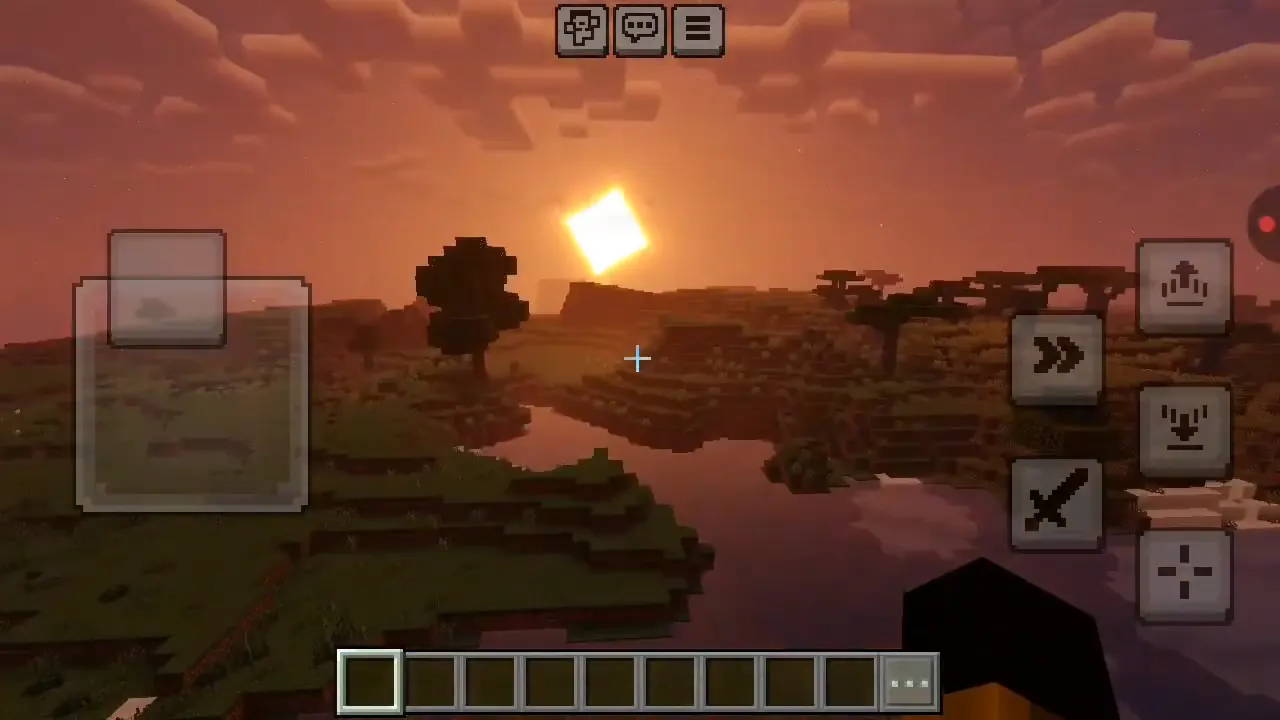
Minecraft Patch Shader Gameplay
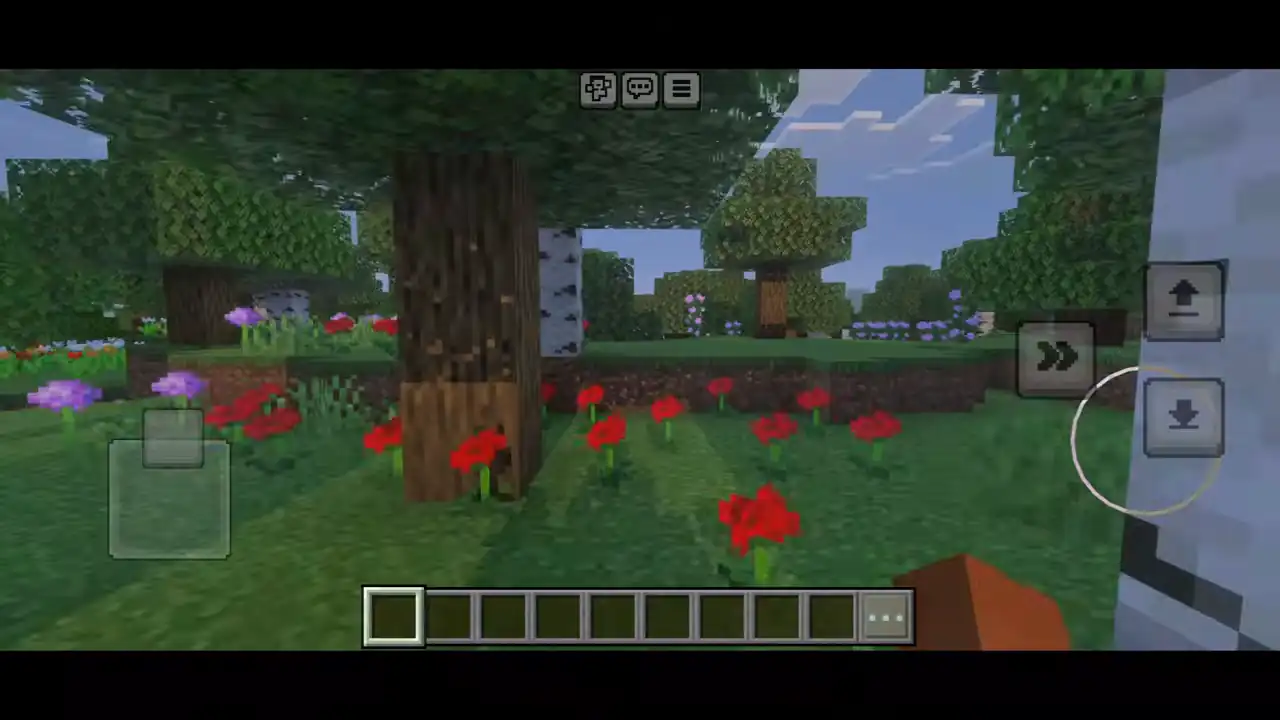
Want to see how these shaders look before installing them?
Check out the gameplay preview to see how a compatible shader can change lighting, water, trees, and the sky.
Remember that the final appearance depends on your shader pack, Minecraft version, phone, and graphics settings. The preview shows one setup, so your results may look different.
Before Installing Minecraft Patch APK

If you already have Minecraft installed on your Android phone, back up your important worlds before making changes.
Some patched APK versions install as separate apps, while others may require you to replace an existing installation.
Also, make sure your chosen APK comes from a source you trust and matches the Minecraft version required by your shader.
How to Install Shaders Using Minecraft Patch
Installing shaders in the patched app is fairly simple once you have a compatible APK and shader pack. Follow these steps to get started.

Step 1: Install a Compatible Minecraft Patch
First, check your Minecraft Bedrock version and find a patched APK that supports it. Follow the installation instructions for that specific release.

Step 2: Download a Shader Pack
Choose a RenderDragon shader that supports your installed version. Download the Android-compatible .mcpack file.

Step 3: Import the Shader
Open the downloaded .mcpack file using the patched app. The game should start importing the resource pack automatically.

Step 4: Activate the Shader
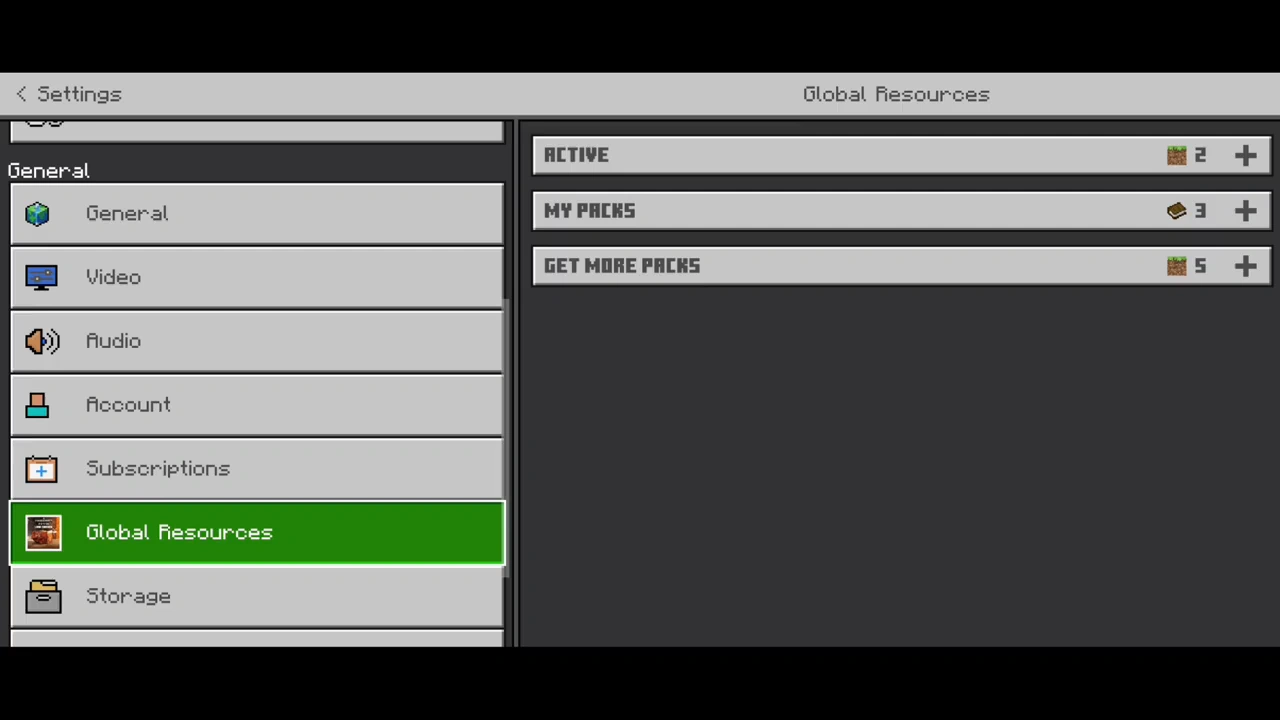
Open the patched app and go to Settings > Global Resources > My Packs. Find your imported shader and activate it.
Some shaders may require additional settings, so check the instructions provided with the pack.

Step 5: Restart and Play
Restart the game if required, then open a world to test your shader. If everything is compatible, you should notice the visual changes.
If the shader doesn't work, double-check your game version, shader pack, and loader.
Minecraft Patch Android Requirements
The app requirements depend on the version you install and the shader you want to use.
A lightweight shader may run well on a mid-range Android phone, while more detailed packs can need stronger graphics performance.
For the best experience, check your device compatibility, available storage, and the requirements listed by the patch developer.
Minecraft Patch vs Regular Minecraft
The main difference between the patched app and regular Minecraft Bedrock is support for certain third-party RenderDragon shaders.
| Feature | Patched Version | Regular Minecraft |
|---|---|---|
| Minecraft Gameplay | Yes | Yes |
| Third-Party RenderDragon Shaders | Supported with compatible patches | Depends on built-in graphics support |
| Custom Resource Packs | Yes | Yes |
| Performance | Depends on shader and device | Depends on settings and device |
| Updates | May require a compatible new patch | Official game updates |
A patched setup is useful if you want to try shader packs that need a modified game or loader. However, regular Minecraft may be the better choice if you don't need those particular shaders.
Minecraft Patch Not Working? Try These Fixes
Shader Imported but Not Showing
Make sure the shader is activated in Global Resources and supports your installed version. Restart the game and check again.
Minecraft Patch Keeps Crashing
Your APK or shader may not be compatible with your game version or device. Try disabling other resource packs and testing one shader at a time.
Shader File Won't Import
Check that you've downloaded the correct .mcpack file. If Minecraft doesn't appear when opening it, try selecting the app manually through your file manager.
Low FPS or Lag
Some Minecraft shaders can be demanding. Try lowering your render distance, choosing lighter shader settings, or switching to a simpler shader pack.
Frequently Asked Questions
What is Minecraft Patch used for?
The patched app is mainly used to run compatible third-party RenderDragon shaders on Minecraft Bedrock for Android. It lets you change the appearance of lighting, water, skies, and other graphics.
Can I use it on Android?
Yes. The patched app is designed for Android versions of Minecraft Bedrock. You need an APK compatible with your game version and device.
Does Minecraft Patch support all shaders?
No. Not every shader works with the patched app. Some require specific game versions or loaders, so always check compatibility before downloading.
Is there an iOS version?
The Android APK cannot be installed on iPhones or iPads. iOS requires a different compatible solution.
Why are my Minecraft Patch shaders not working?
The most common reasons are an incompatible shader, an incorrect game version, or a resource pack that hasn't been activated. Check these first before reinstalling anything.
Does Minecraft Patch improve FPS?
Not necessarily. The patch is mainly used for shader compatibility, not FPS improvement. Some shader packs can actually reduce performance because they add more graphics effects.
Can I update to a newer release?
You can move to a newer compatible patch release when one is available. However, check shader support and back up your worlds before changing your installation.